Release ver. Manual
For those who feel the game runs too slow
For those who find the game launcher being deleted due to antivirus false positives
For those who find the game crashing abruptly due to reasons unknown
Basic Operation
-
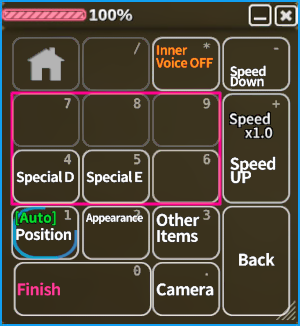
[Num 1] Auto > Pose A > Pose B > Pose C > Auto If set to auto, cycles between A, B, and C randomly in 20 second intervals.
By pressing A, you can switch between A, B and so on.[Num 4-9] About the special functions The amount of special H-plays you can do per position
will increase depending on the character's "corruption" level.
※The conditions to unlock them can differ between the characters and the positions.[Num 0] About finishing You can finish inside, outside, or climax according to the varying positions as stated above.
※ The various finishes can vary depending on the character and the position.
[Semen Accumulation] The entire body can be covered in various amounts of semen, by stages.[Num 2] About the garment adjustment You can adjust the state of the custom garments
and put them on and off and do so partially as well here.[Num 3] About accessories and other items Here you can use H-scene specific items.
※ They disappear once out of scene.
The gag ball changes the voice and dialogue as well.[Num +/-] About speed up and speed down Changes the playback speed of the animation
※ Reverts to normal speed during the finish automatically.[Num *] About the inner voice key You can use this to hear the inner voice of the girl.
※ Turns off automatically during finish.
[Num .] About the camera For details, please refer to the 'Keypad Control
[camera operation]' section below -
●Keypad Control [camera operation]
-
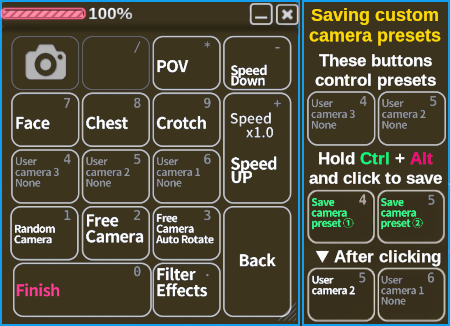
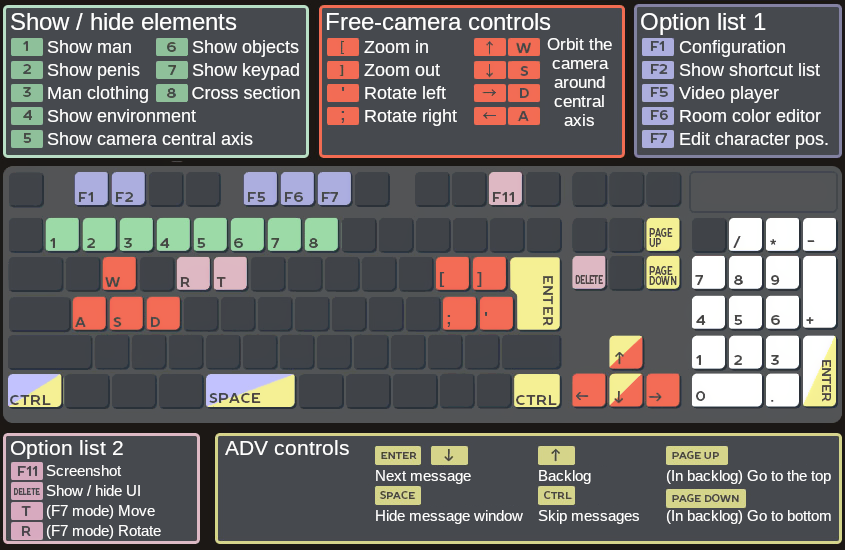
[Num 1] About Camera - Random Angle Rotates the camera randomly, with the character in center.
The angle can be adjusted using the mouse.
※The focus point cannot be adjusted.[Num 2] About Camera - Free Mode Allows the camera to be moved using the mouse.
Please check the 'Mouse Operation [Free Camera]' section for more details[Num 3] About Camera - Free Mode + Auto Rotation This is essentially just [Num 2] Free Mode with auto rotation added on top.
The rotation speed can be adjusted in the configuration menu.[Num 7-9] About the individual part focus points Locks the camera to specific focus points.
Maintains position relative to the part even if the character moves.
※ Effect is cancelled if the focus is changed (by pressing the wheel)[Num 4-6] About the camera position save function For each H-scene, you can save any 3 camera positions of your choosing.
Simply move the camera to the desired point, hold down Ctrl + Alt
and then either press the UI buttons or 1-3 on the numpad to save.[Num .] About Camera - Effects/Frames Puts on a UI effect similar to a handheld camera
or a hidden camera.
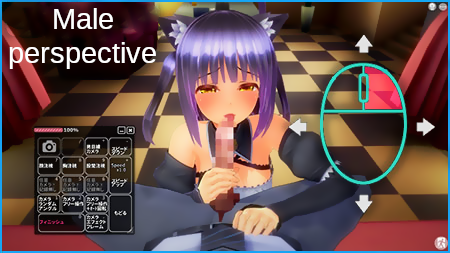
[Num*] About the Male PoV Fixes the camera to the protagonist's head.
By holding down the right mouse button and moving the mouse around,
you can move the protagonist's head
The mouse wheel no longer adjusts the zoom but rather the Field-of-View
※Please be vary of motion sickness. -
●Mouse Operation [Free Camera]
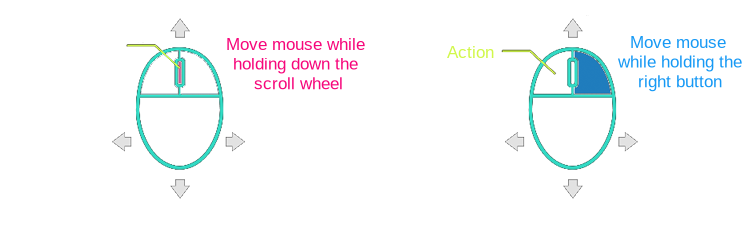
 Camera - Zoom in
 Camera - Zoom out
※ Holding down Ctrl + Zoom In/Out changes the FoV  Camera - Rotate left
 Camera - Rotate rightPressing both together resets the rotation
 -
-
●About the special functions of the F5, F6 and F7 keys

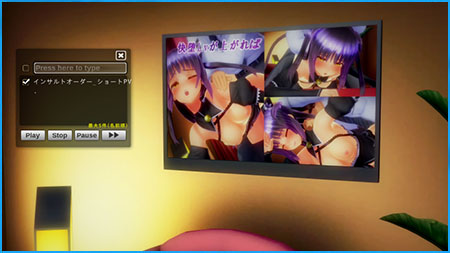
▼Video player [Free sex mode only] You can play videos on the TV in the room.
Press F5 to open the video player menu.
To add videos press "VIDEO" in the launcher
and place up to 5 videos inside the "Video" folder.
※Only .mp4 video files are playable.
※Adding videos while the game is running will do nothing.
You can play a Youtube™️ video as well
by putting it in the search bar at the top.
※Changes to YouTube API may cause
this functionality to break down.
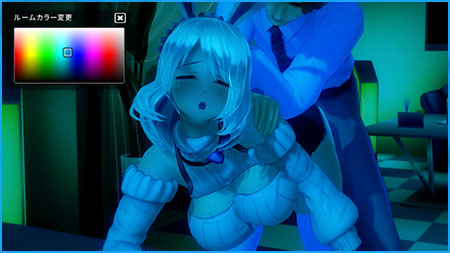
▼Room color configuration You can adjust the color and luminence of the room with the color picker. 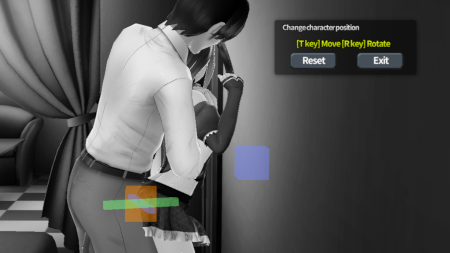
▼Character movement mode [Free sex mode only] [F7] When in movement mode, "colored boxes"will appear.
Moving all: Orange
Neko: Blue
Tomoe: Pink
Protagonist: Green
[T key] Translation in space.
[R key] Rotation.
[Reset] Return all to initial position.
[End] Finalizes the positions and ends movement mode. -

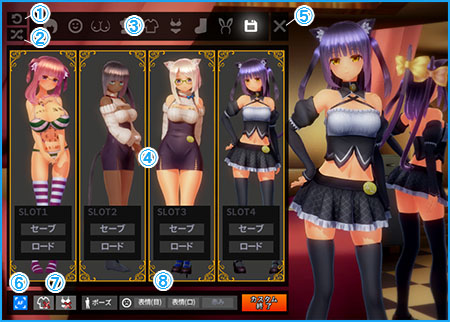
1: Reset customization 2: Customize randomly 3: Part-wise customization tabs 4: Save tab. Only 4 customizations can be displayed at any given time.
The customization save files are located inside the
"CustomData" folder, inside the "Save" folder.5: Hide the customization UI 6: If Auto-Focus (AF) is enabled, on clicking the individual tabs in #3
the camera will automatically move to that part.7: Hide clothes/underwear temporarily. 8: Change pose/expression. -

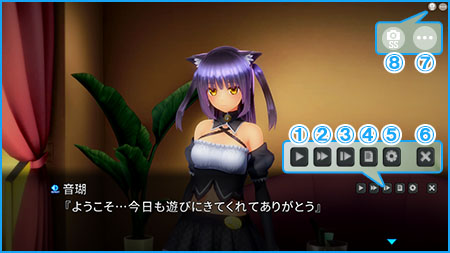
1: Automatically moves the dialogue forward. 2: Fast-forwards through the text 3: Jumps to the next choice/scene. 4: Displays the backlog. 5: Brings up the configuration menu. 6: Turns message window on/off 7: Brings up the sidebar/mini configuration menu. 8: Takes a screenshot. ※ Saved within the ScreenShot folder -
- Enter, Right Click, Wheel Down: Proceeds the dialogue. - Ctrl: Fast-forwards the text. - Wheel up: Brings up and scrolls up the backlog. - Pg up: (In backlog) Scroll to the top - Pg dwn: (In backlog) Scroll to the bottom -
About game progression
●Withdrawing from scenes

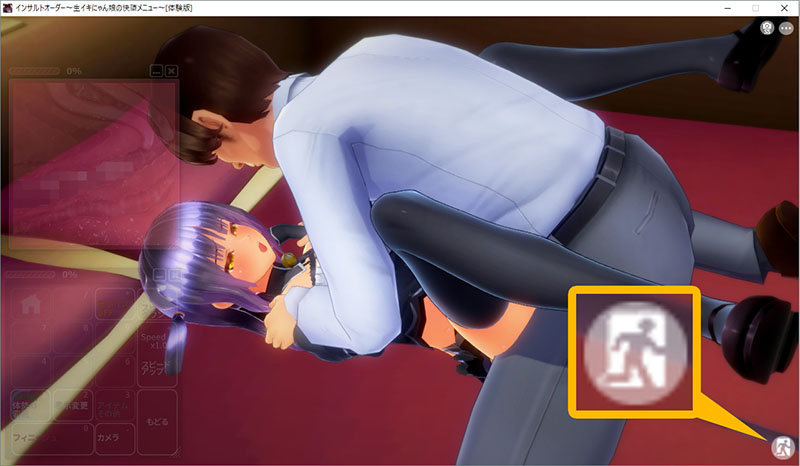
When you wish to exit the H-scenes, simply click the EXIT button on the bottom right corner to proceed to the next part of the story, or return to the title from there. ●The main room screen

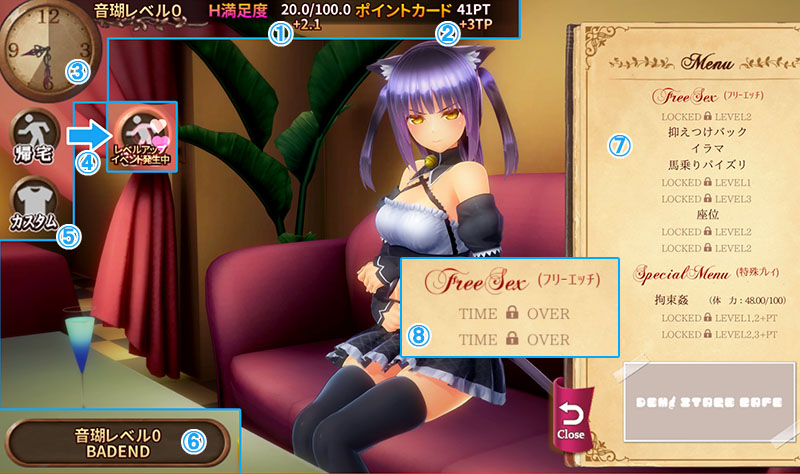
1: This is the character's H-satisfaction level. The value added to it depends on the H-act done, and crossing beyond a certain point can raise the corruption level. 2: These are points stored in the point card. They accumulate through H and special plays, and the amount varies depending on what exactly is done. 3: This displays the time left until closing time. You can do H acts until midnight. The time that elapses can vary between acts. 4: The return home button. It ends the day. If an event flag is triggered, pressing this starts it. 5: The character customization button. Brings up the character editor. 6: The ending button. Shows the ending per corruption level. 7: The menu. Lists the H acts and special plays you can do. 8: If there isn't enough time remaining (see #3), you will be able to do certain acts and plays. Simply return home and come again the next day. -
Help
If the game runs too slow
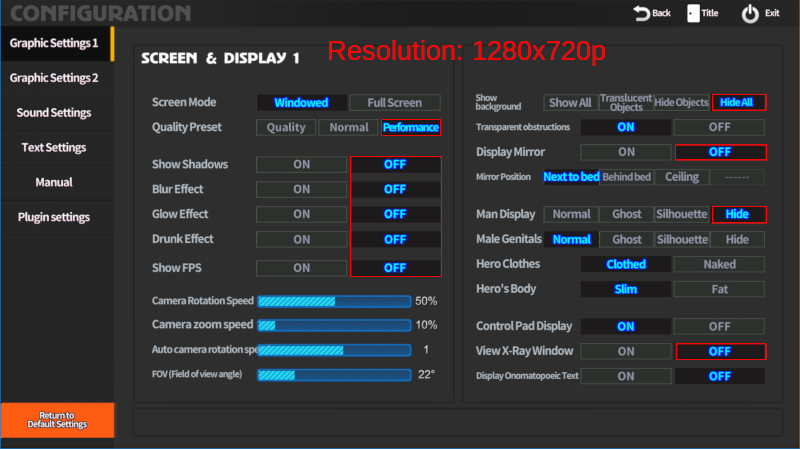
If this is your first time playing a Miconisomi game and you find that the game runs too slowly, please do try the settings marked with the red border. -
If the game launcher keeps being deleted due to antivirus false positives
Please exclude the game's install directory and/or whitelist it in the anti-virus software that you use. ●Exclusion settings for some common anti-virus software:
- Kaspersky
- Norton Anti-virus
- Virus Buster
- ESET
- Super Security Zero
- McAfee
- Avast
If the game launcher is deleted anyway or does not start the game correctly
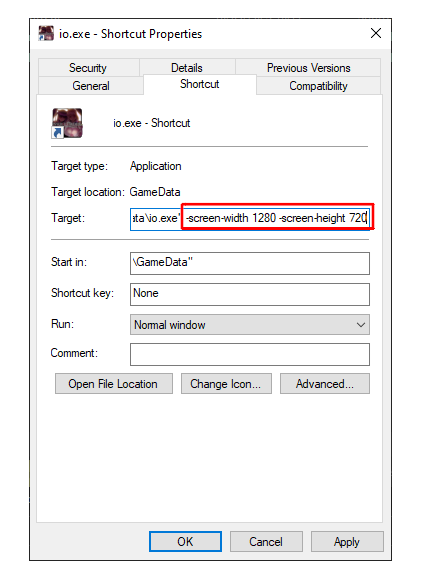
First, please make sure that the file "io.exe" exists inside the "GameData" folder. 1: Right click "io.exe" > "Create Shortcut". "io.exe - Shortcut" will be created in the same folder. 2: Right click the shortcut > "Properties" > Inside the "Target" field, you can enter text. 3: At the end of the path, add "-screen-width 1280 -screen-height 720". In the end, it should look something like this ["~path~\io.exe" -screen-width 1280 -screen-height 720] ※ After the "io.exe", a single space is necessary for it to function. The resolution stated above is just the default resolution, so as long as it is in a 16:9 ratio, it will function fine. 4: Press OK/Apply, and then launch the game via the shortcut. -
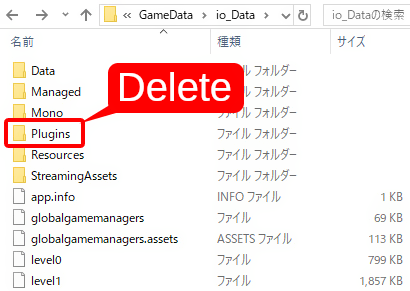
If the the game keeps crashing abruptly due to reasons unknown
Sometimes, the game may be forcefully terminated due to environmental factors. One of the possible causes can be the video playback plugin bundled with the game. Either delete the "Plugins" folder inside "GameData\io_Data" or move it outside the game directory ※ This will completely remove the ability to play videos ingame (This error is quite likely to occur if the scenes transition too frequently at once, so please do be mindful of that if you wish to enjoy the video playback functionality)